Specwright Desktop
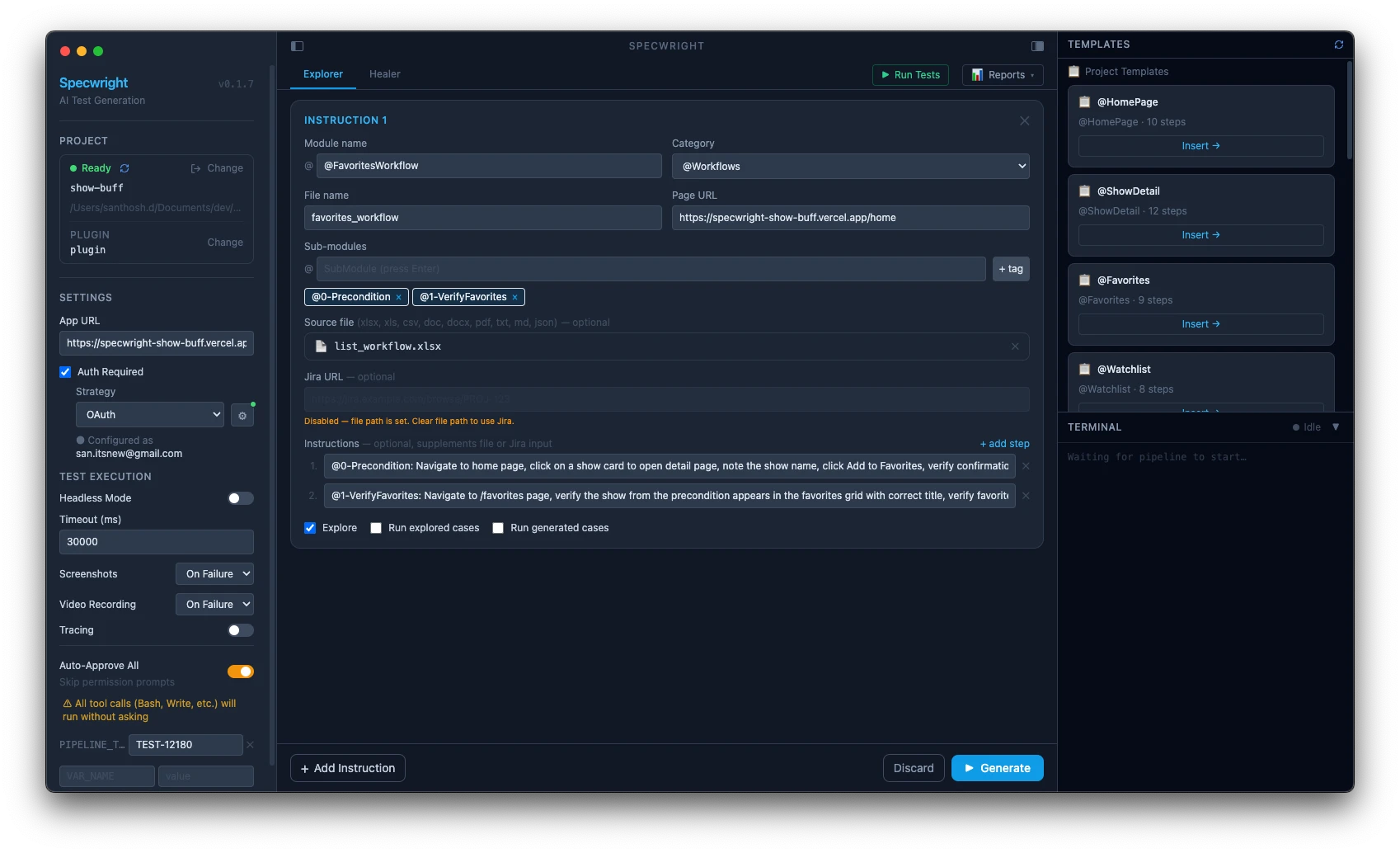
Specwright Desktop is an Electron app that wraps the same 10-phase pipeline with a visual, three-panel interface. It streams agent output token-by-token, shows phase-by-phase progress, and provides a GUI for auth configuration and environment variables.
Download
Available for Mac (Apple Silicon + Intel) and Windows. Download the latest release from GitHub Releases.
| Platform | File |
|---|---|
| macOS (Apple Silicon) | Specwright-*-mac-arm64.dmg |
| macOS (Intel) | Specwright-*-mac-x64.dmg |
| Windows | Specwright-*-win-x64.exe |
macOS: Open the DMG → drag Specwright to Applications → right-click → Open on first launch (app is unsigned). Windows: Run the installer — the app launches automatically when done.
First launch — project setup
When you open Specwright Desktop for the first time, you'll see the welcome screen.
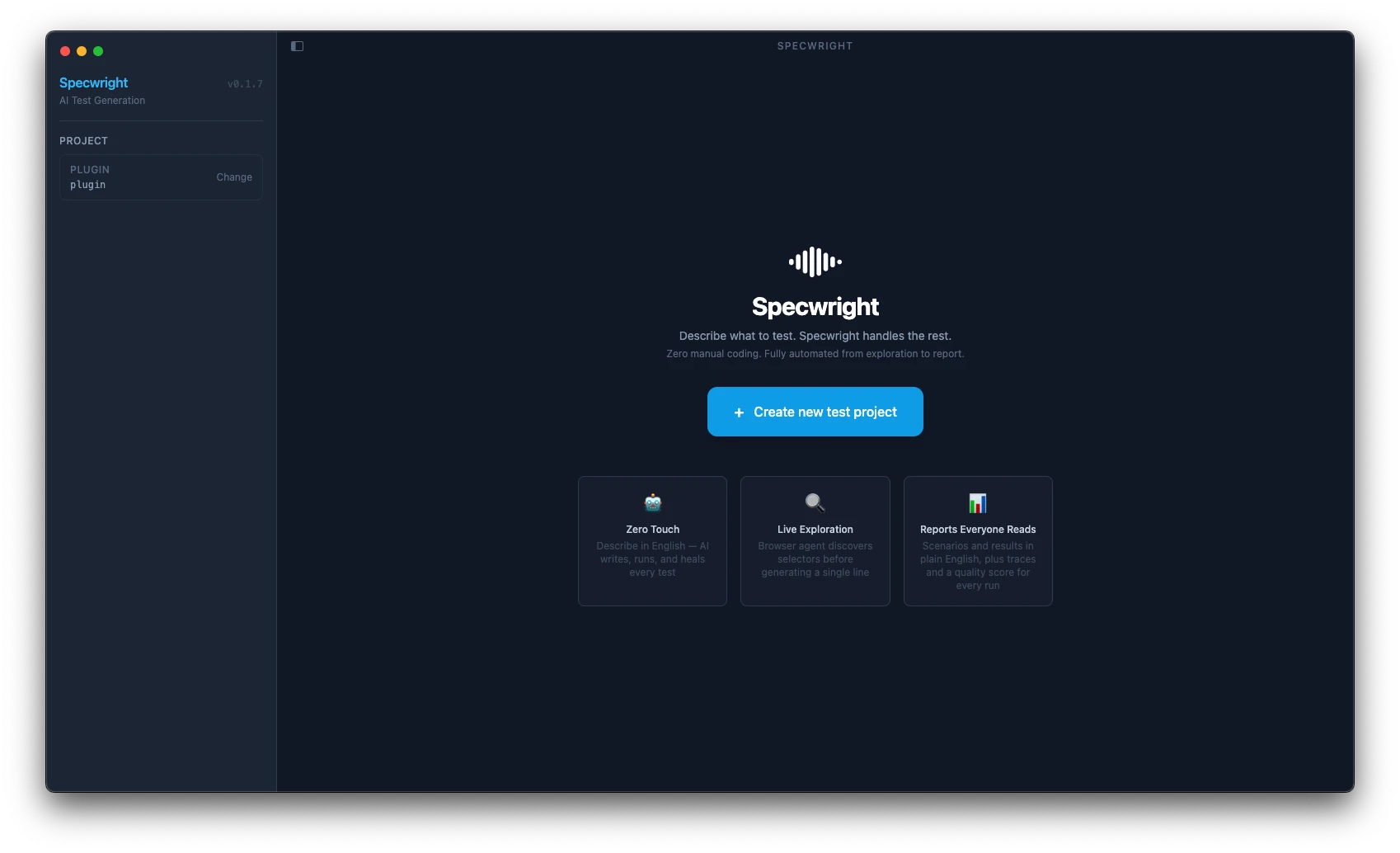
- Click Open Project and select your project folder
- The app detects whether
@specwright/pluginis installed - If not installed, click Bootstrap Plugin — the app runs
npx @specwright/plugin initautomatically - Once detected, the Left Panel shows your plugin version and overlay (if any)
Three-panel interface
┌────────────────┬──────────────────────────┬────────────────┐
│  Left Panel    │     Center Panel          │  Right Panel   │
│  ─────────     │     ─────────────         │  ──────────    │
│  Plugin info   │  Live agent output        │  Phase status  │
│  Auth config   │  Token-by-token stream    │  Run controls  │
│  Env vars      │  Phase markers            │  Quality score │
│  Run button    │  Phase 6 approval UI      │                │
└────────────────┴──────────────────────────┴────────────────┘
Left Panel
The Left Panel manages your project configuration.
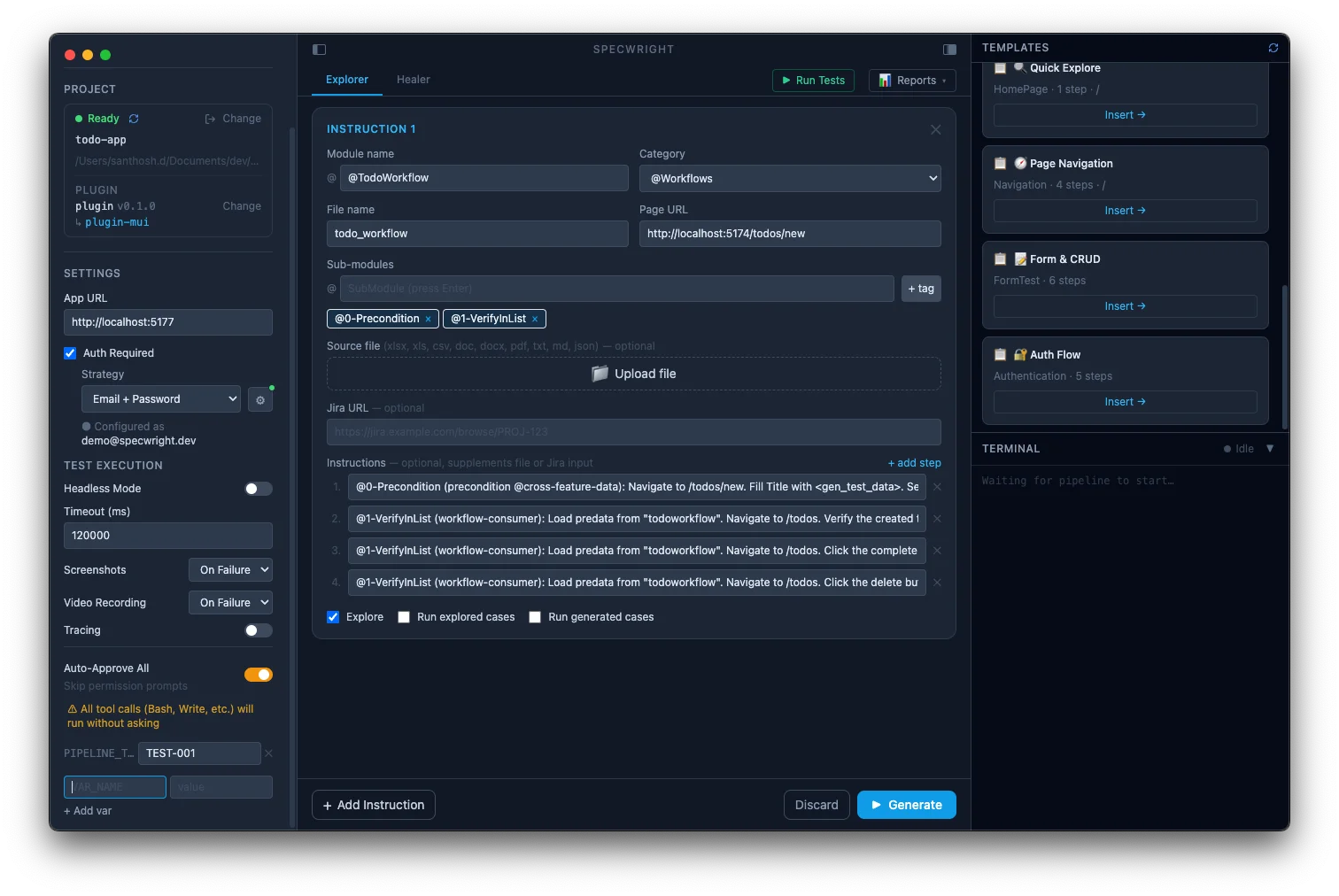
Plugin section
Shows the detected plugin name and version. If an overlay plugin is installed, it appears below the base plugin:
plugin  v0.1.0
↳ plugin-mui
Environment variables
The env var editor lists all fields from e2e-tests/.env.testing. Changes are saved directly to the file.
Auth configuration
Click the Settings (gear) icon next to the plugin section to open the Auth Configuration modal.
OAuth strategy:
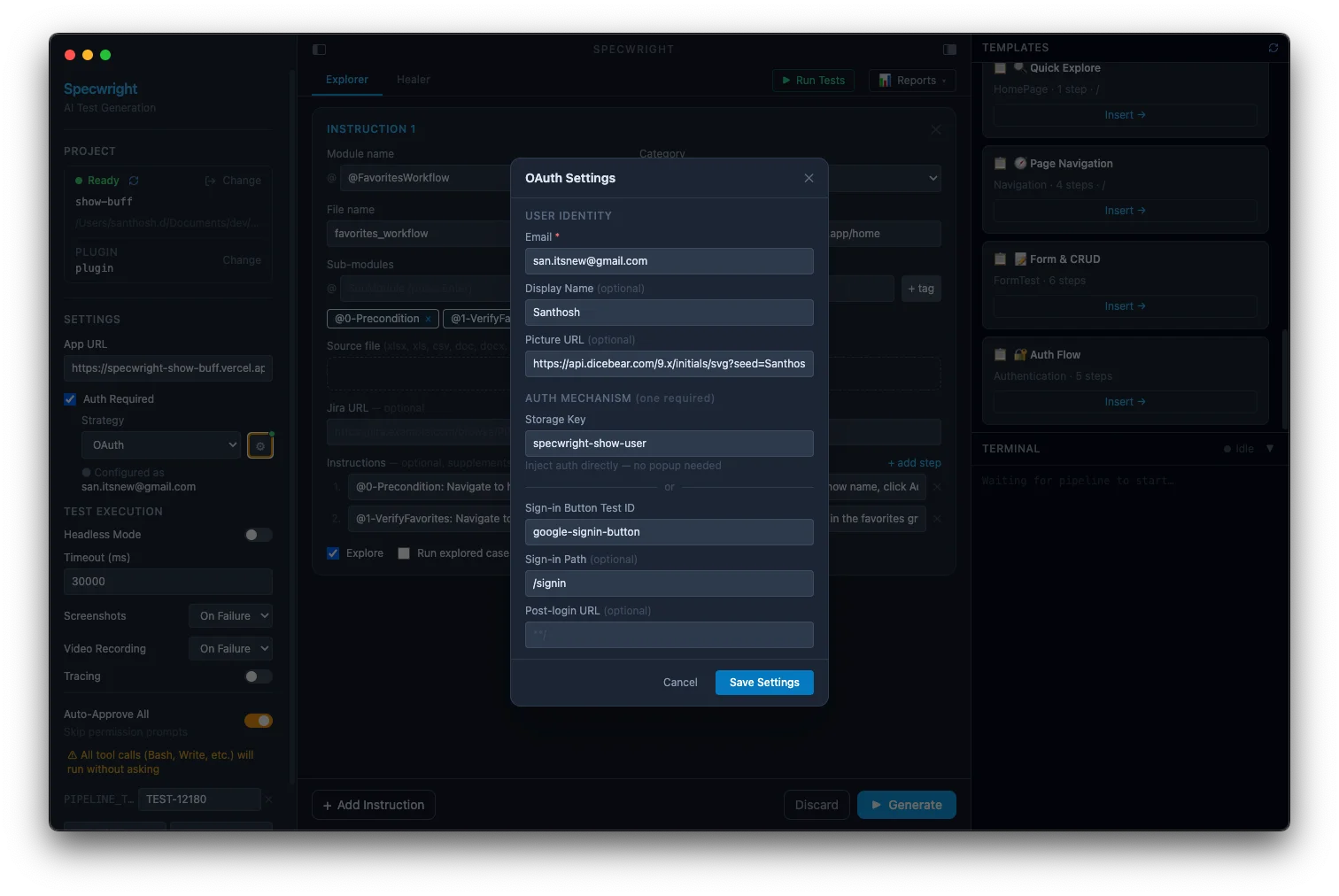
| Field | Description |
|---|---|
| Test User Email | TEST_USER_EMAIL — used to verify the logged-in user |
| Test User Name | TEST_USER_NAME — display name shown in the app header |
| OAuth Storage Key | OAUTH_STORAGE_KEY — the localStorage key holding the auth token |
| Signin Path | OAUTH_SIGNIN_PATH — default: /signin |
| Button Test ID | OAUTH_BUTTON_TEST_ID — fallback: the sign-in button's data-testid |
| Post Login URL | OAUTH_POST_LOGIN_URL — default: **/ |
Email + Password strategy:
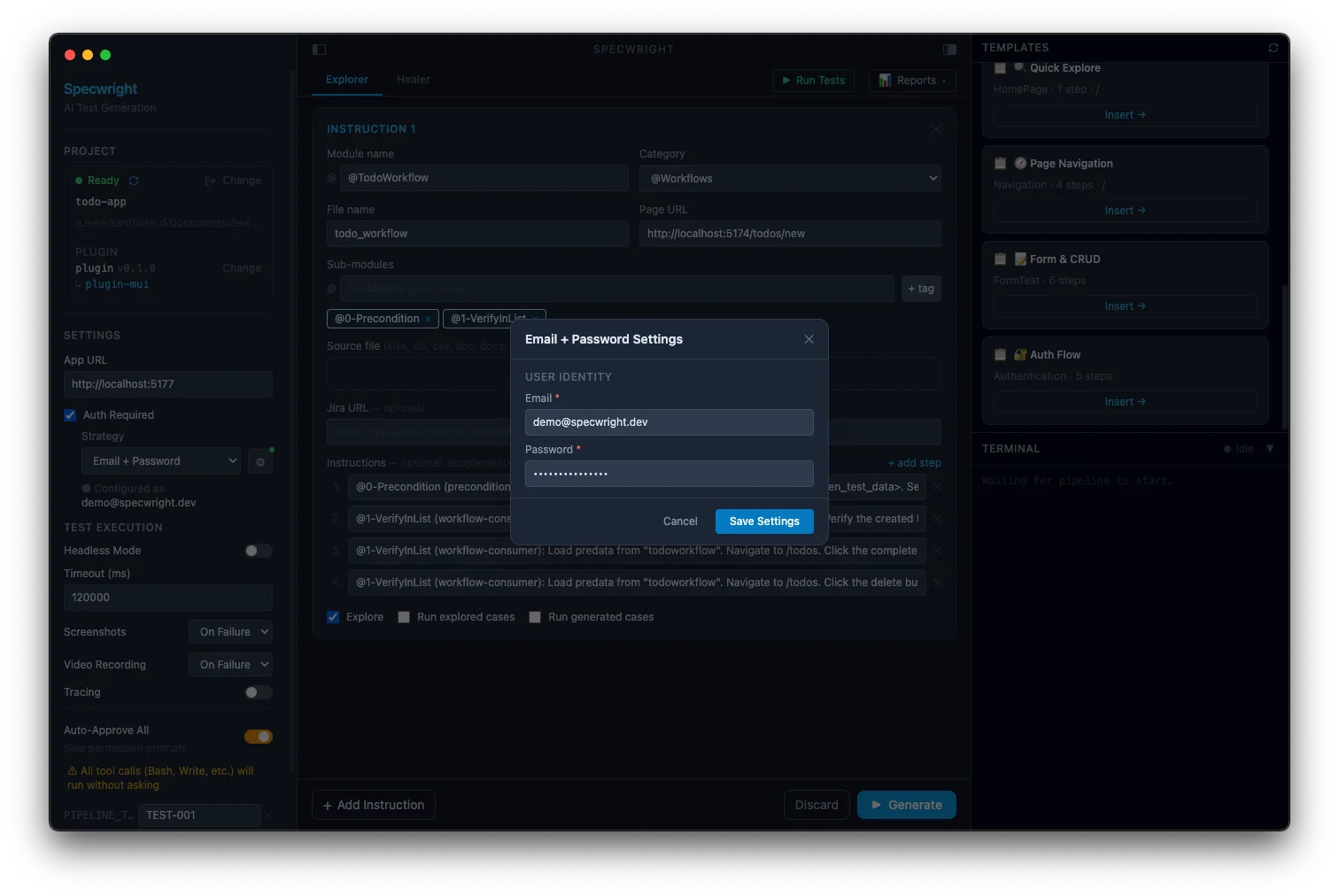
| Field | Description |
|---|---|
| Test User Email | TEST_USER_EMAIL |
| Password | TEST_USER_PASSWORD |
All values are saved to e2e-tests/.env.testing — the same file the CLI uses.
Run button
Click Run Pipeline to start the full /e2e-automate pipeline. The button is disabled while a run is in progress.
Center Panel
The Center Panel streams live agent output as the pipeline runs.
What you see
- Phase markers —
### Phase 1: Input Processing,### Phase 4: Exploration, etc. - Agent output — tokens stream in as the agent produces them
- Tool use — browser navigation, file reads, and writes are shown inline
- Active tool indicator — a spinner shows when a tool is executing
Phase 6 — approval
When the pipeline reaches Phase 6, the Center Panel shows the generated test plan and the run button changes to an Approve / Reject decision.
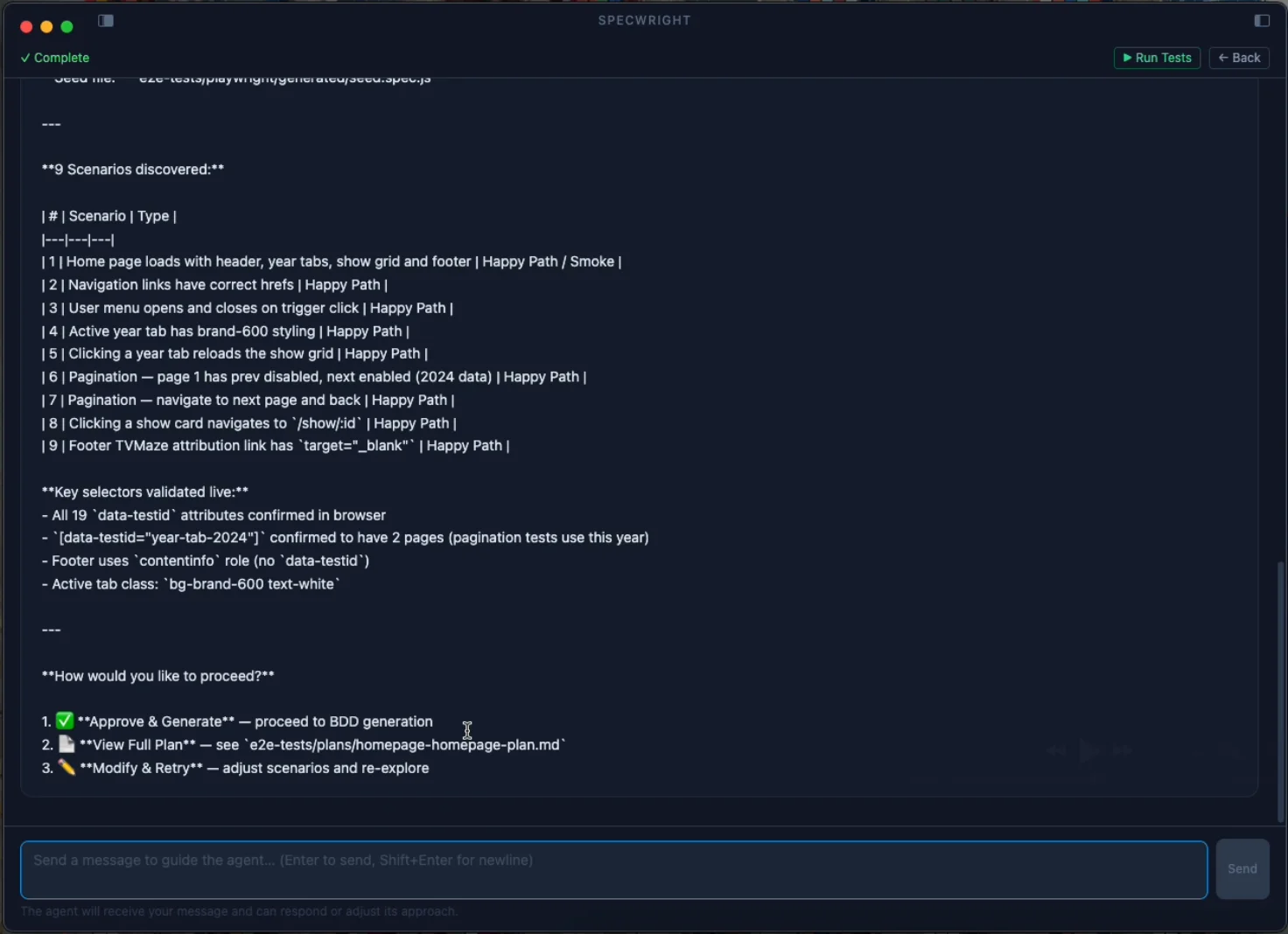
- Approve — continues to Phase 7 (BDD generation)
- Reject — stops the pipeline; you can edit
instructions.jsand re-run
Stopping a run
Click Stop in the Right Panel to halt the pipeline mid-run. The current agent step will finish before stopping.
Right Panel
The Right Panel shows pipeline state and controls.
Phase tracker
Each of the 10 phases shows one of:
| Status | Meaning |
|---|---|
| ⬜ Waiting | Not started |
| 🔄 Running | Currently executing |
| ✅ Complete | Finished successfully |
| ⏭ Skipped | Skipped (e.g., explore: false) |
| ❌ Failed | Stopped with error |
Quality score
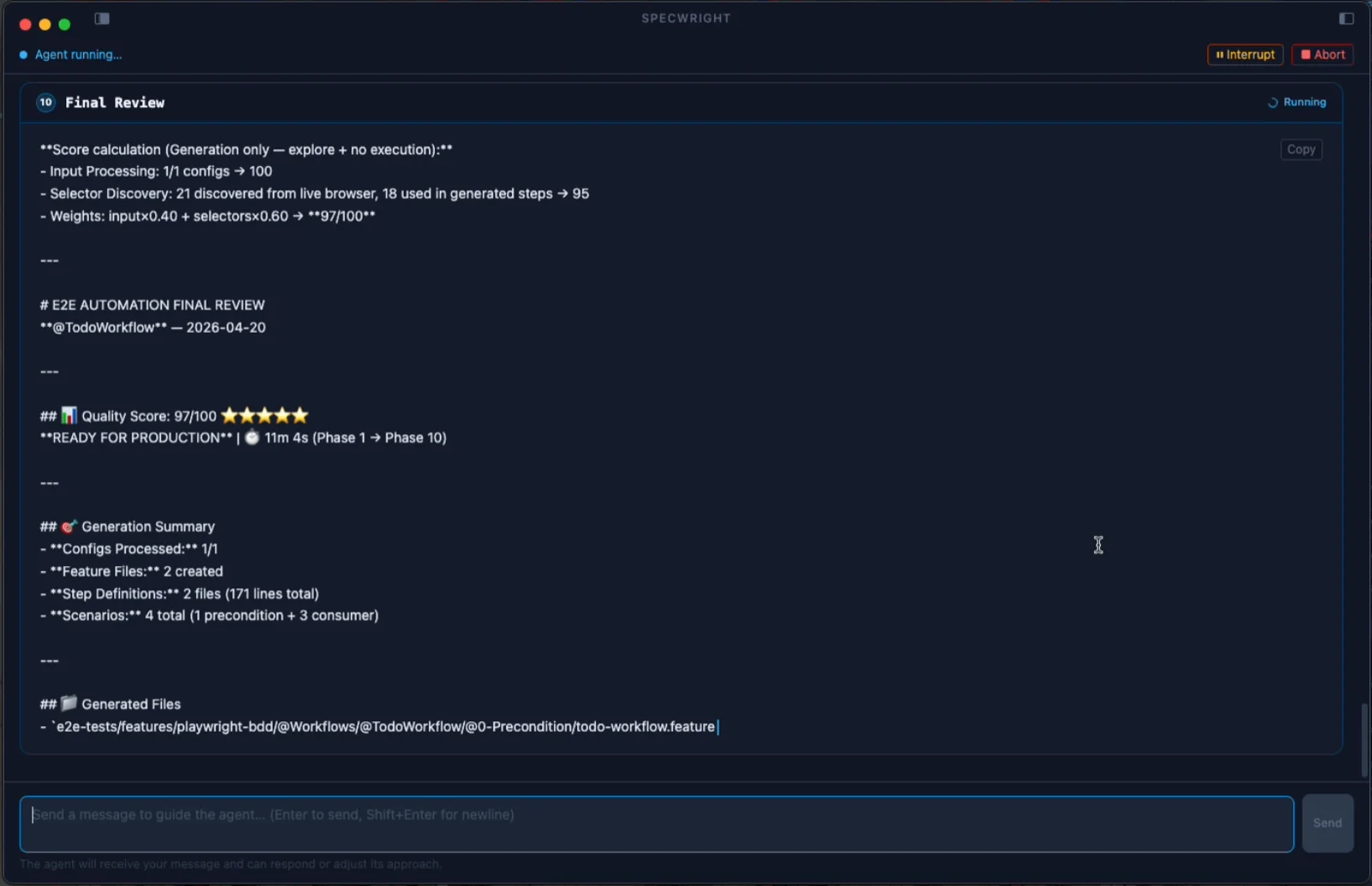
After Phase 10 completes, a quality score (0–100) appears in the Right Panel. The score reflects:
- Scenario coverage vs instructions
- Selector quality
- Data table completeness
- Shared step reuse
Run / Stop controls
- Run Pipeline — starts
/e2e-automatewith the currentinstructions.js - Stop — halts the current run
- Clear — clears the Center Panel output
Refreshing the project
If you edit e2e-tests/.env.testing outside the app (e.g., in a terminal), click the Refresh button (↻) in the Left Panel to reload the env vars without restarting.
vs. CLI
| Feature | Desktop | CLI |
|---|---|---|
| Live streaming output | ✅ Token-by-token | ✅ Printed to terminal |
| Phase status UI | ✅ Visual tracker | ❌ |
| Phase 6 approval UI | ✅ Approve/Reject buttons | ✅ Agent pauses and asks in terminal |
| Auth config GUI | ✅ Modal form | Manual edit of .env.testing |
| Env var editor | ✅ GUI | Manual edit of .env.testing |
| Plugin bootstrap | ✅ One-click | npx @specwright/plugin init |
Both interfaces run the identical pipeline. Choose based on preference.